Viewing All Events
View Events Pipeline
Feature Explanation
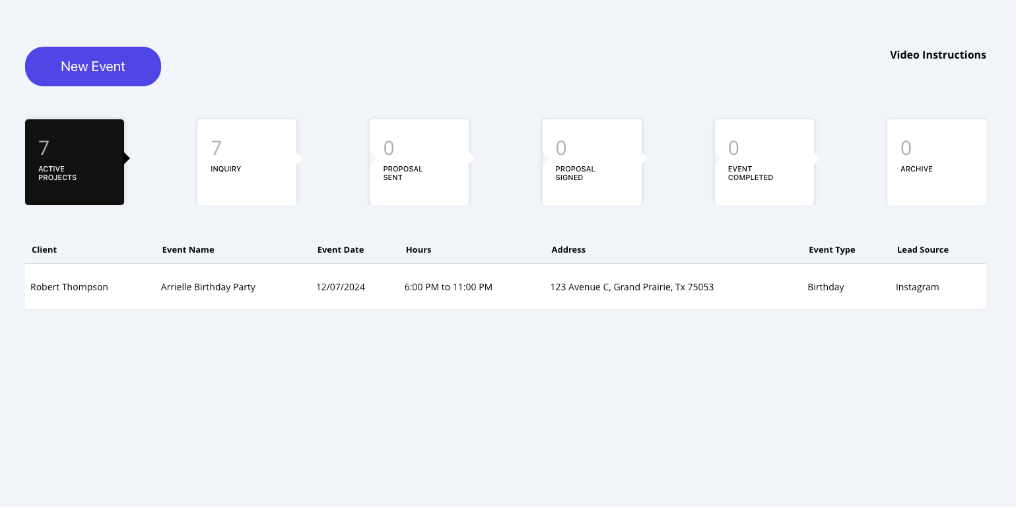
The “View Events” page is where you can see an organized overview of all active and past events you’re managing. This page provides quick access to essential event details, including client name, event name, date, time, location, type, and lead source. Additionally, you can track the status of each event in different stages, like Inquiry, Proposal Sent, Proposal Signed, Event Completed, and Archived. Each event entry in the table allows you to easily keep track of upcoming or completed events without needing to go into each event’s details individually. Clicking on an event takes you directly to the Event Overview Page, where you can view and manage all details related to that specific event.
Key Sections on View Events Page:
- New Event Button: Create new events with client details, event date, time, type, and location.
- Event Status: Track Active Projects, Inquiry, Proposal Sent, Proposal Signed, Completed, and Archived.
- Event Table Columns:
- Client: Customer name for each event.
- Event Name: Easy identification using custom event names.
- Event Date & Hours: Shows scheduled date and timeline.
- Address: Event location.
- Event Type: Wedding, birthday, corporate, etc.
- Lead Source: Where the customer found you (Instagram, referrals, etc.).
The Benefit
The “View Events” page saves time by consolidating all event information in one place, making it easy to stay on top of your schedule and manage multiple events at a glance. By categorizing events based on their current status, you can prioritize tasks and follow-ups, ensuring nothing falls through the cracks. This page is designed to streamline your workflow, allowing you to focus more on delivering a successful event rather than on tracking administrative details.
New Event Setup
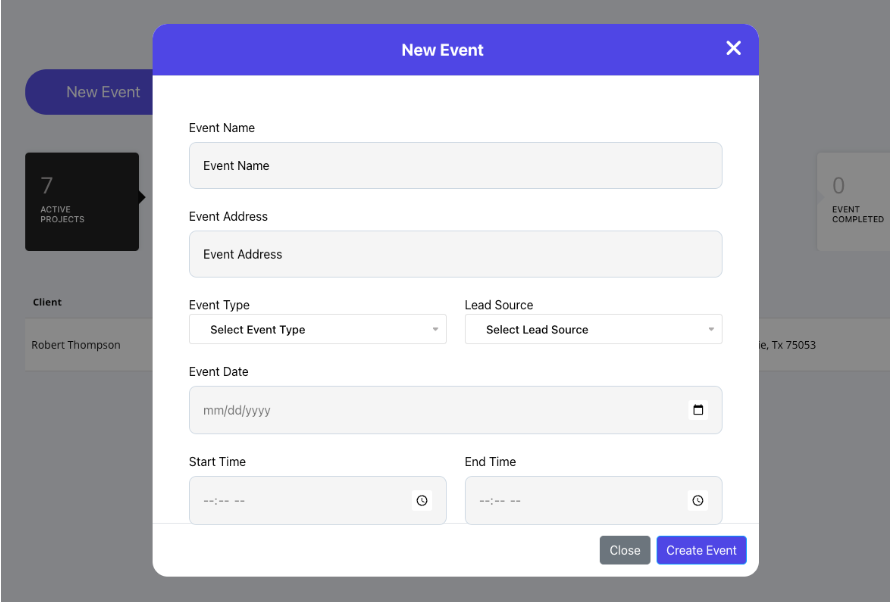
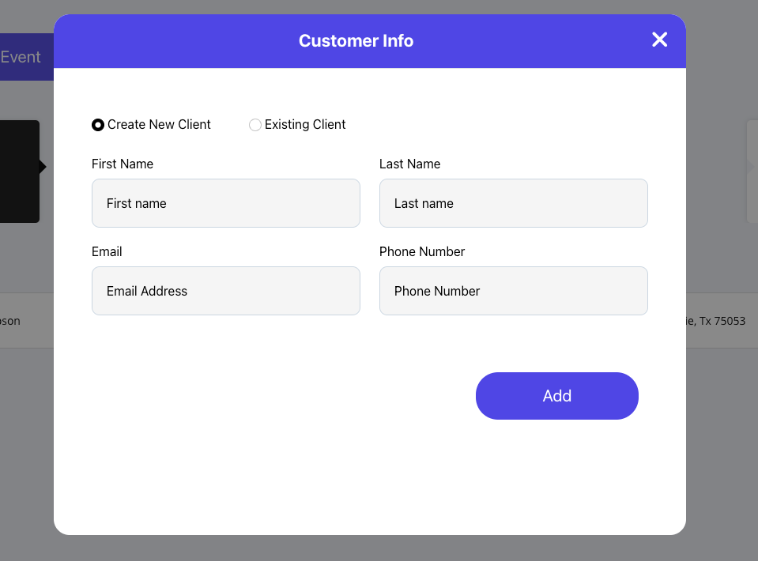
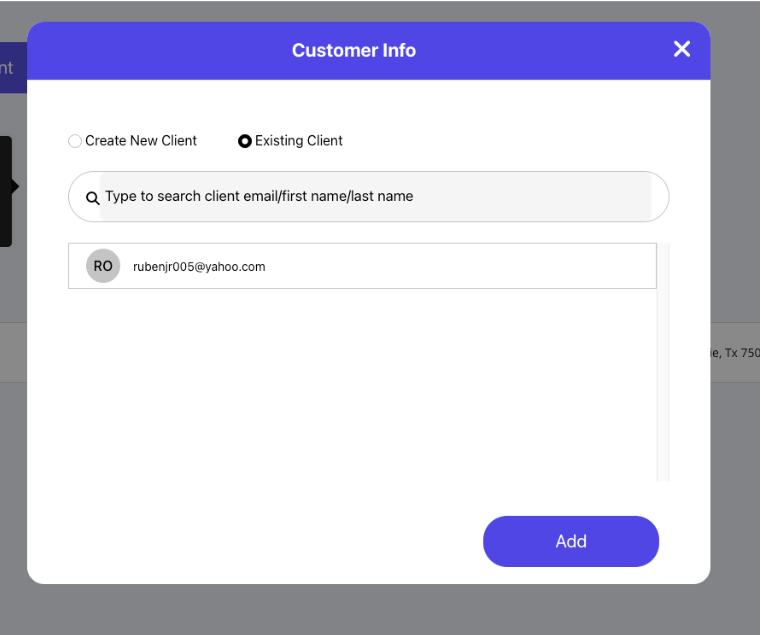
The New Event button opens up the New Event window where you can enter essential details to set up a new event. This window has two main parts:
- Event Information – Fill in the event name, address, type, lead source, date, and start/end time.
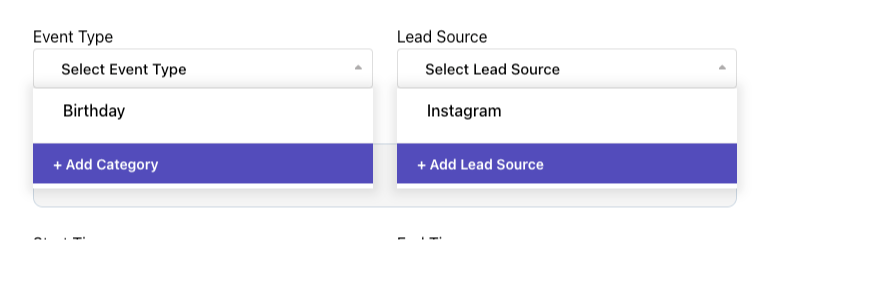
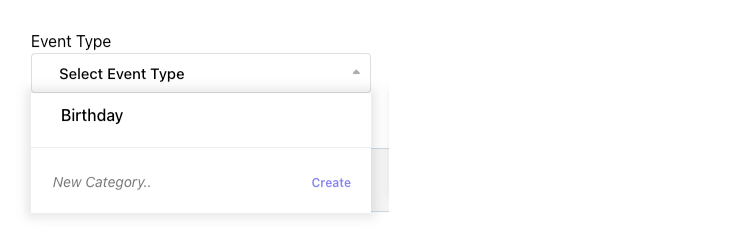
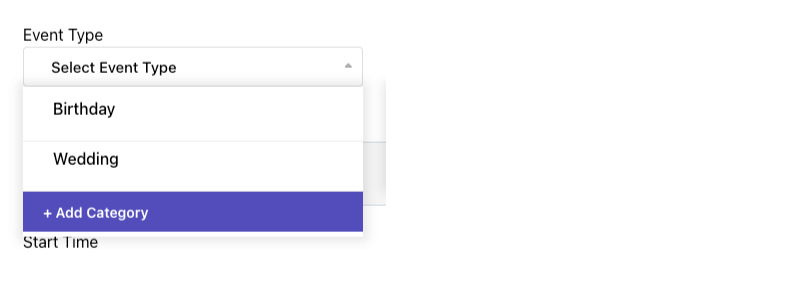
Custom Categories for Event Type & Lead Source: Add your own categories (e.g., “Facebook”) to make the system more flexible for your workflow.
- Customer Information – Enter new customer details or select an existing client.
This feature makes it easy to set up events quickly and ensures your pipeline stays organized at all times.