Event Overview Page
Event Overview Tab: Feature Explanation
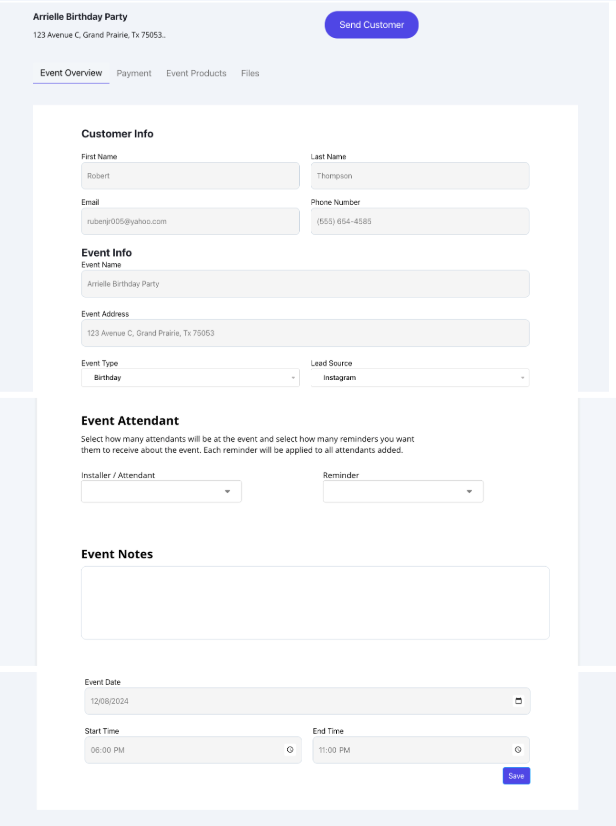
The Event Overview page serves as the central hub for each event, displaying essential details such as customer information, event name, location, date, start and end times, and lead source. This page provides a streamlined way to view and manage all event details in one place.
Key Features of the Event Overview
- Customer Info: Displays the customer’s first and last name, email, and phone number for quick reference.
- Event Info: Provides details about the event name, address, type, lead source, date, start time, and end time, helping you keep track of event logistics.
- Event Attendant: Allows you to assign installers or attendants to the event, set up reminders, and choose whether notifications are sent via email or text. This ensures your team is well-informed and prepared for their assigned tasks.
Event Products Tab: Feature Explanation
The Product Tours feature allows users to create customized, interactive tours that showcase their packages and products. This feature is designed to save time by eliminating back-and-forth email
- Event Notes: A dedicated section for adding notes related to the event, which can include special instructions or client requests.
Additionally, the Event Overview page includes Tabs that categorize and organize the event details further. These tabs—Event Overview, Payment, Event Products, and Files—provide quick access to specific areas of event management, allowing you to handle payments, product selections, and files seamlessly. Each tab offers unique benefits and functionality, which you can explore in more detail as needed.
This centralized approach simplifies event management, ensuring that all the information and tools you need are readily available and easy to navigate.
Payment Tab: Feature Explanation
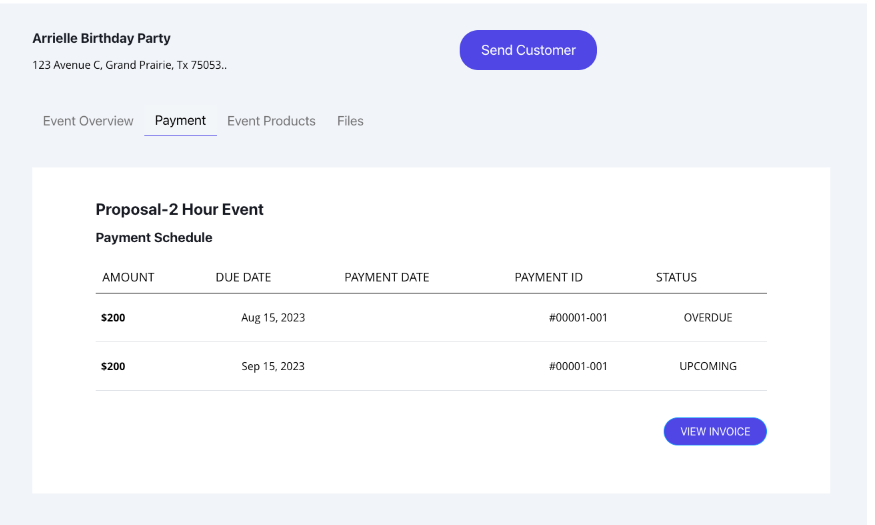
The Payment tab provides users with a comprehensive view of all payment-related information for an event. When a Proposal or Invoice template is sent to a customer, the associated payment schedule will automatically populate in this tab. This includes details such as the amount due, due dates, payment IDs, and the current payment status.
The Payment tab is designed to help users track the progress of payments effortlessly. It indicates whether payments are Paid, Overdue, or Upcoming, allowing users to stay organized and follow up with customers as needed.
Additionally, there is a View Invoice button that allows users to quickly access the invoice associated with the payment schedule. Whether a Proposal or Invoice template was sent, this button will always display the invoice for streamlined viewing and reference.
By consolidating all payment information and tools in one place, this feature simplifies financial status for every event.
Event Products Tab: Feature Explanation
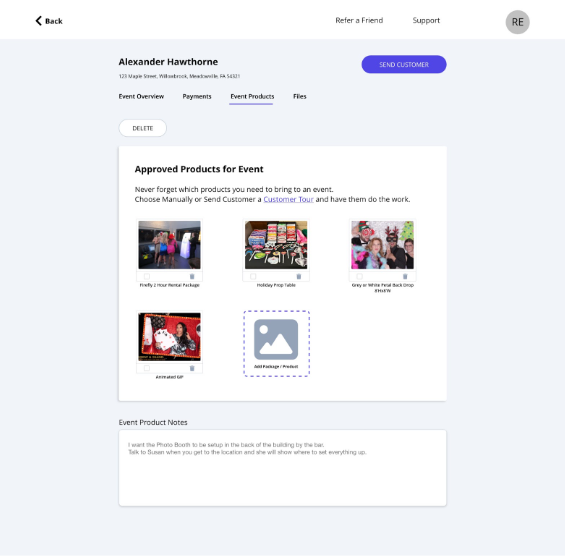
The Event Products tab is where all approved packages and products for a specific event are displayed. This tab provides a clear and organized overview of everything you need to bring to an event.
You can manage this tab in two ways:
- Manual Selection: Add packages or products directly by clicking the “Add Package/Product” button. Even if an Event Tour was sent and the customer has already selected their desired packages or products, this button remains available for adding items later if necessary.
- Customer Tour Integration: Send an Event Tour to the customer, allowing them to select packages and products for their event. Once the customer makes their selections, the chosen items will automatically appear in this tab.
- Delete Option: If a package or product is no longer needed, the user can easily remove it by clicking the trash icon for a single item or by selecting multiple items using the checkboxes and then clicking the “Delete” button to remove them all at once. The trash icon is specifically for deleting one item at a time.
Additionally, if you need more details about a specific package or product, clicking on its image will take you to the relevant template for further information.
This tab also includes a “Event Product Notes” section, which serves as a centralized space for directions or special instructions.
- Customers can leave notes or instructions during their Event Tour selection process, which will appear here.
- Users can also manually add notes to ensure installers or attendants have clear guidelines for setting up or handling products at the event.
The Benefit
The Event Products tab ensures that all package and product details are easily accessible, helping you stay organized and prepared for events. Here’s why it’s beneficial:
- Avoids Mistakes: Reduces the risk of forgetting or bringing the wrong products to an event, which can be especially inconvenient for distant locations.
- Supports Installers/Attendants: Provides clear instructions and a list of items to bring, minimizing confusion and ensuring smooth execution.
- Handles Multiple Events: Essential for users managing multiple events or events scheduled months ahead, as it centralizes all package and product details.
- Flexibility: Whether set up manually or through a customer’s Event Tour, this tab adapts to your workflow and ensures all event needs are accounted for.
- Notes for Better Coordination: Including a notes section allows for clear communication, making it easier to handle specific customer requests or logistical details.
By consolidating product and package details, along with notes, this feature streamlines event preparation and helps prevent errors.
Files Tab: Feature Explanation
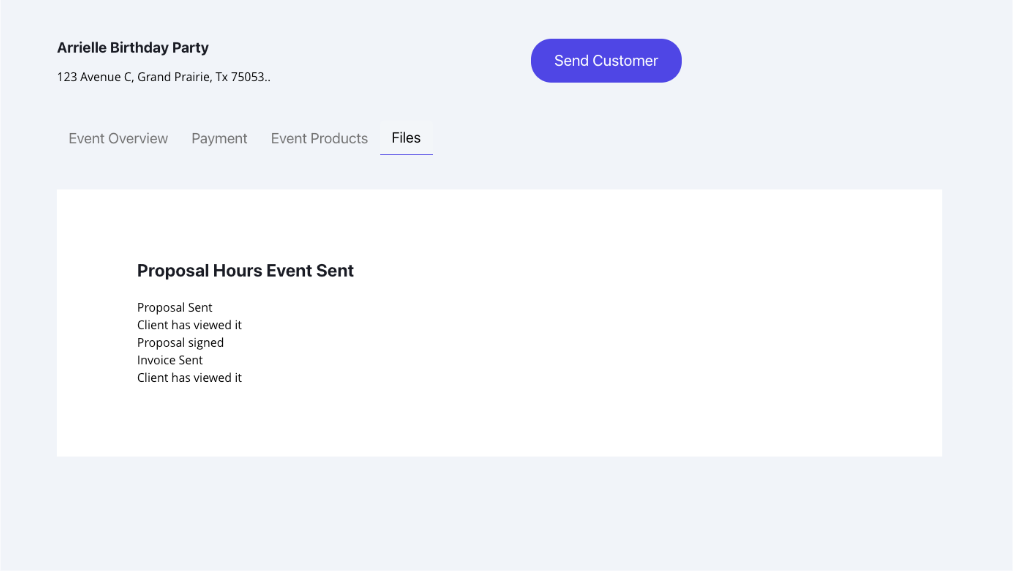
The Files tab is designed to provide users with a centralized location for managing and tracking all files sent to customers. Each file entry includes the file name and a dynamically updating status, ensuring users stay informed about customer actions and the file’s progress.
Examples of statuses include:
- Proposal Sent: Appears when the proposal is initially sent.
- Client has viewed it: Updates once the client opens the proposal.
- Proposal Signed: Updates after the client signs the contract within the proposal.
If multiple files are sent, each will appear in this tab with its respective name and status, offering a complete overview of all file-related activities.
File Management for All Document Types:
1. Contract Management:
- Sent contracts appear with their current status.
- Clicking on a contract file displays the contract details, including whether it has been signed by the user or customer.
- If the customer has signed the contract, their signature will be visible. Users can also sign the contract directly from this tab if they haven’t already.
- Fully executed contracts, with both signatures, will be displayed once completed.
2. Invoice Management:
- Sent invoices are listed with their status, such as Paid, Overdue, or Upcoming.
- Clicking on an invoice file allows the user to view the payment schedule and details.
- If partial or full payments have been made, the updated payment status is displayed here for easy tracking.
3. Questionnaire Tracking:
- Sent questionnaires are listed in this tab.
- Clicking on a questionnaire file allows the user to view the customer’s responses, making it easy to review answers directly from this tab.
- This feature ensures all customer-provided information is easily accessible and organized.
4. Proposal Management:
- Sent proposals appear with detailed statuses that update based on the actions taken for each file included in the proposal. For example: Proposal Sent, Client has viewed it, Contract Signed, Questionnaire Answered, or Invoice Paid.
- Clicking on a proposal displays all the details, including the contracts, invoices, and questionnaires included in the proposal.
- Users can monitor customer interactions and actions taken on the proposal to ensure all steps are completed. Each file’s status is dynamically updated, providing a clear picture of the proposal’s progress.
This tab organizes and consolidates all file-related actions, providing users with a streamlined way to monitor and manage customer interactions.
The Benefit
The Files tab helps users stay organized by keeping all sent files—contracts, invoices, questionnaires, and proposals—in one location with updated statuses. This ensures that users can easily track what files have been sent to their customers and check whether customers have viewed or completed required actions, such as signing a contract, making a payment, or answering a questionnaire.
By providing clear visibility into the progress of each file, this feature reduces the risk of forgetting or mismanaging important customer interactions. It gives users confidence in knowing where they stand with each file, helping them stay on top of their workflow and ensuring smooth communication with customers.