Calendar Feature
Feature Explanation
The Calendar feature provides a simple and intuitive way for users to view, manage, and create events. Users can quickly see all events scheduled for a given month and identify which days are free. The calendar is fully synchronized with the Events feature, ensuring accuracy and making it easy to manage schedules.
Key functionalities include:
- Month Navigation: Users can navigate between months using the left and right arrows on the top left of the calendar.
- Today’s Highlight: The current date is visually indicated with a circle behind the date number, making it easy to locate today on the calendar.
- Return to Current Month: If users navigate to a different month, they can quickly return to the current month by clicking the “This Month” button on the top right.
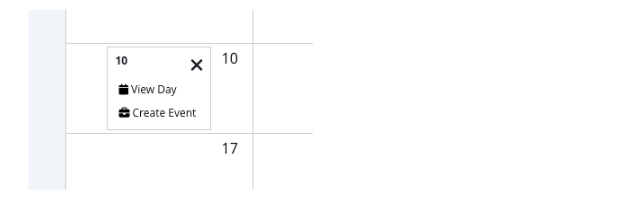
- Event View and Creation: Clicking on any day in the Month View gives users two options:
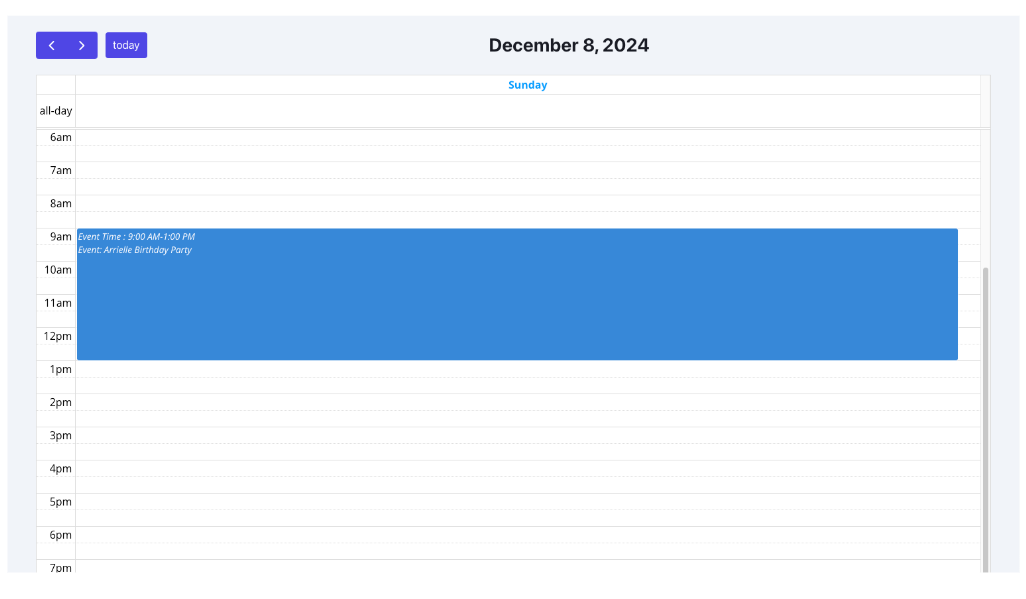
- View Day: Takes the user to the Day View, showing a detailed schedule for that day, including highlighted time blocks for scheduled events.
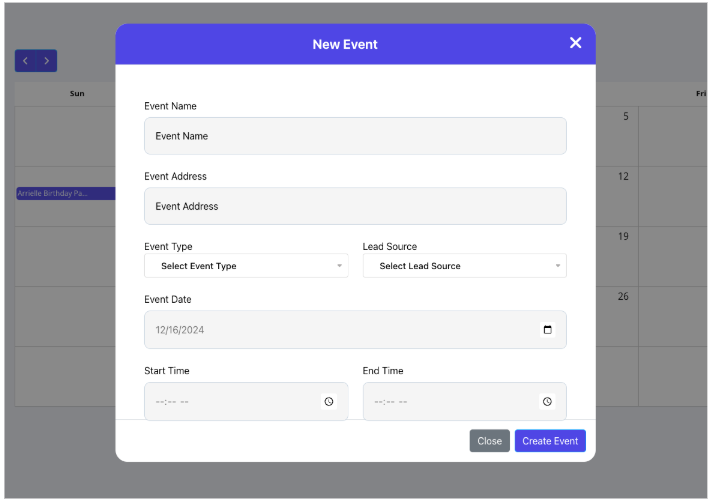
- Create Event: Opens the New Event window to create a new event for the selected day.
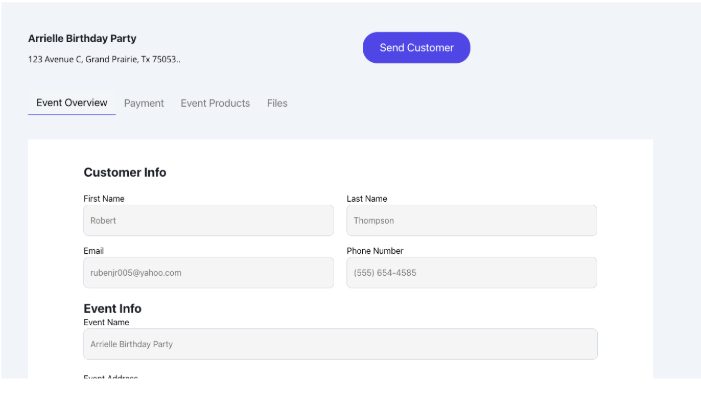
- Event Details Access: Clicking on an event in either Month View or Day View takes the user directly to the Event Overview page for that event, streamlining event management.
The Benefit
The Calendar feature provides an intuitive way for users to view all their events for the month at a glance. It shows how many events are scheduled and which days are free, while also allowing users to quickly create new events directly from the calendar. By syncing seamlessly with the Events feature, it ensures that the calendar stays accurate and up-to-date, making it even more useful for managing schedules efficiently.
Key functionalities include:
- Quick Month Overview: Users can easily see all scheduled events for a month, identify free days, and plan ahead.
- Navigation Flexibility: The ability to move between months and quickly return to the current month with the “This Month” button enhances usability.
- Efficient Event Management: With direct links to the Event Overview page, users can quickly access event details or make updates without extra navigation.
- Improved Planning: The circle highlighting today’s date helps users stay focused on the current day’s tasks and schedule.
- Simplified Event Creation: The ability to create new events directly from the calendar saves time and ensures that the calendar remains up-to-date.
By combining seamless navigation, synchronization with the Events feature, and a user-friendly interface, the Calendar makes event scheduling and management straightforward and efficient.
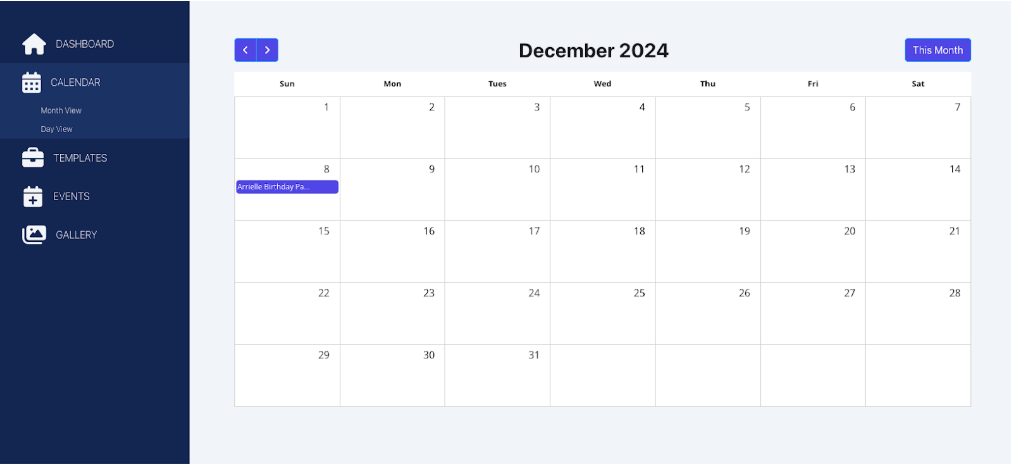
View Events on Month View
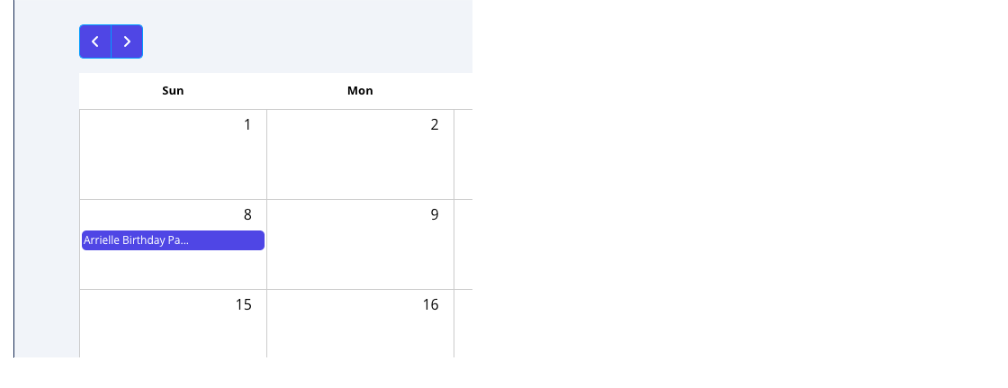
After you click on an Event you are taken to Event Overview
After you click on a Day you see a POPUP Window with 2 options
If you click on View Day
If you click on Create Event